Get an API Key
API keys are how you authenticate requests to Skywalk API. Each key belongs to one project, is bound to one AppFolio® connection, and carries its own read and write permissions.
Create an API Key
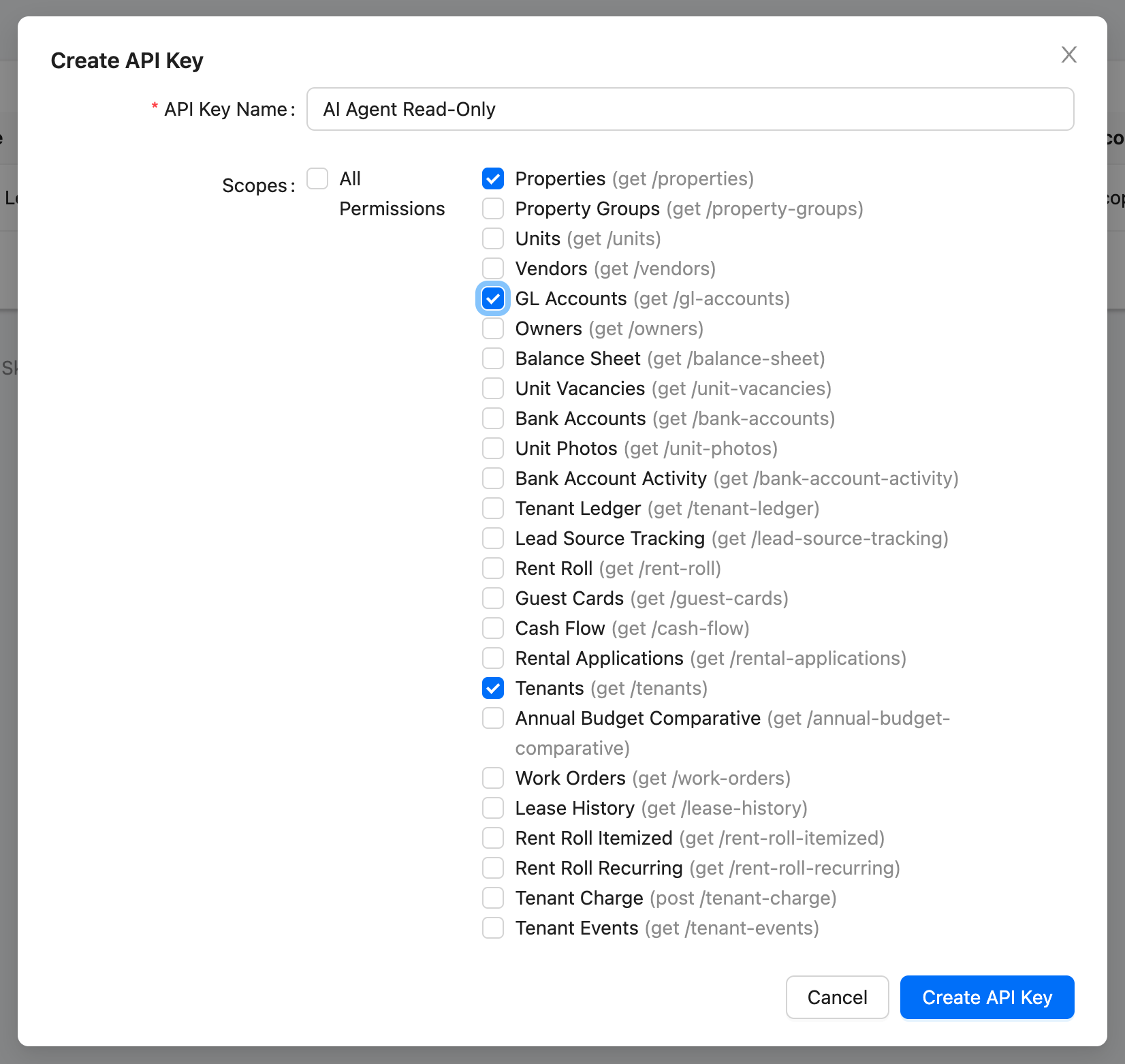
From the Dashboard, open your project and go to API Keys. Click Create API Key, give it a descriptive name — for example, "Reporting Integration" or "AI Agent Read-Only" — choose the AppFolio® connection it runs as, and set its permissions.
Using Your API Key
Include your API key in the X-API-Key header with every request:
curl https://api.skywalkapi.com/v1/properties \
  -H "X-API-Key: YOUR_API_KEY"
See Authentication for full details on the authentication header and example requests.
Key Permissions
A key's permissions are a list of scopes in the form read:<data type> or write:<data type>, where the data type is the endpoint's path segment — read:bills covers GET /v1/bills and GET /v1/bills/<appfolioId>, and write:bills covers POST /v1/bills.
- Read —
read:*for every data type, orread:<data type>for specific ones. New keys start withread:*. - Write —
write:*for every data type that can be created, orwrite:<data type>for specific ones. New keys have no write access until you grant it. In the Dashboard, granting write access to a data type also grants read access to it.
A request outside a key’s scopes is refused with a 403 naming the scope it needs. You can change a key's permissions at any time from the API Keys list; the change applies to the key's next request and the secret stays the same.
Create separate keys for different integrations. For example, use a read-only key for reporting dashboards and a separate key with write:tenant-charge for the tool that creates tenant charges. This way you can revoke access for one integration without affecting others.
Every request also runs as the key's AppFolio® connection, so a key can never see more than that login is permitted to see in AppFolio®.
Revoking a Key
To revoke a key, go to the API Keys section and choose Revoke key next to the key you want to disable. The key stops working immediately and cannot be reactivated.
Best Practices
- Never expose keys in frontend code or public repositories
- Grant the minimum permissions each integration needs, and leave write access off unless the integration creates records
- Use descriptive names so you can easily identify which integration uses which key