Account Setup
Getting started with Skywalk API takes just a few minutes. This guide walks you through creating your account, setting up a project, and connecting to your AppFolio® database.
1. Create Your Account
Visit skywalkapi.com and sign up for an account.
After signing up, you'll be taken to the Skywalk API Dashboard where you can manage your projects, API keys, and integrations.
2. Create a Project
From the Dashboard, click Create Project and give your project a name — typically the name of the AppFolio® database you'll be connecting to.
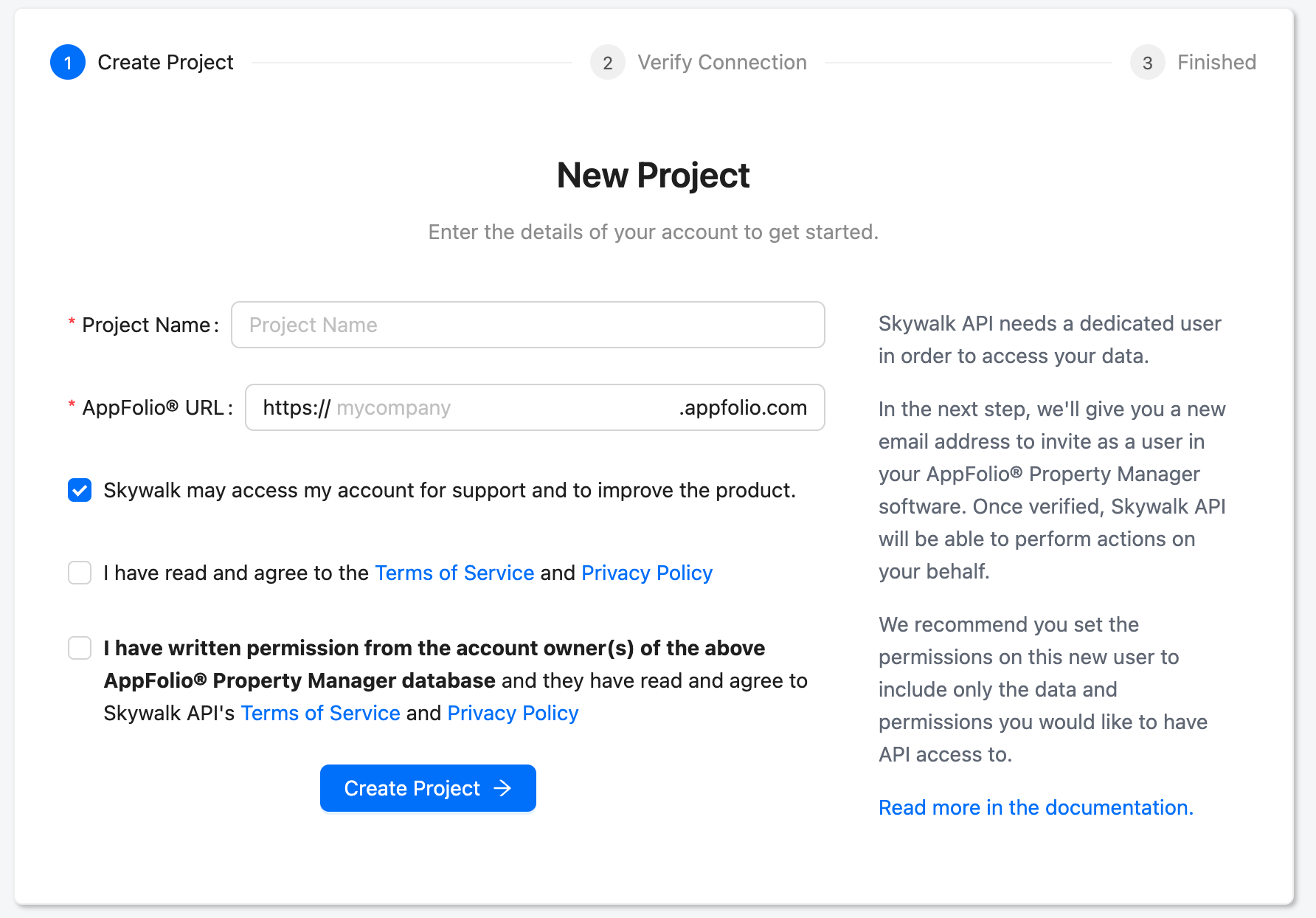
When you create a project, Skywalk API generates a dedicated email address for that project. You'll use this email address in the next step to connect to AppFolio®.
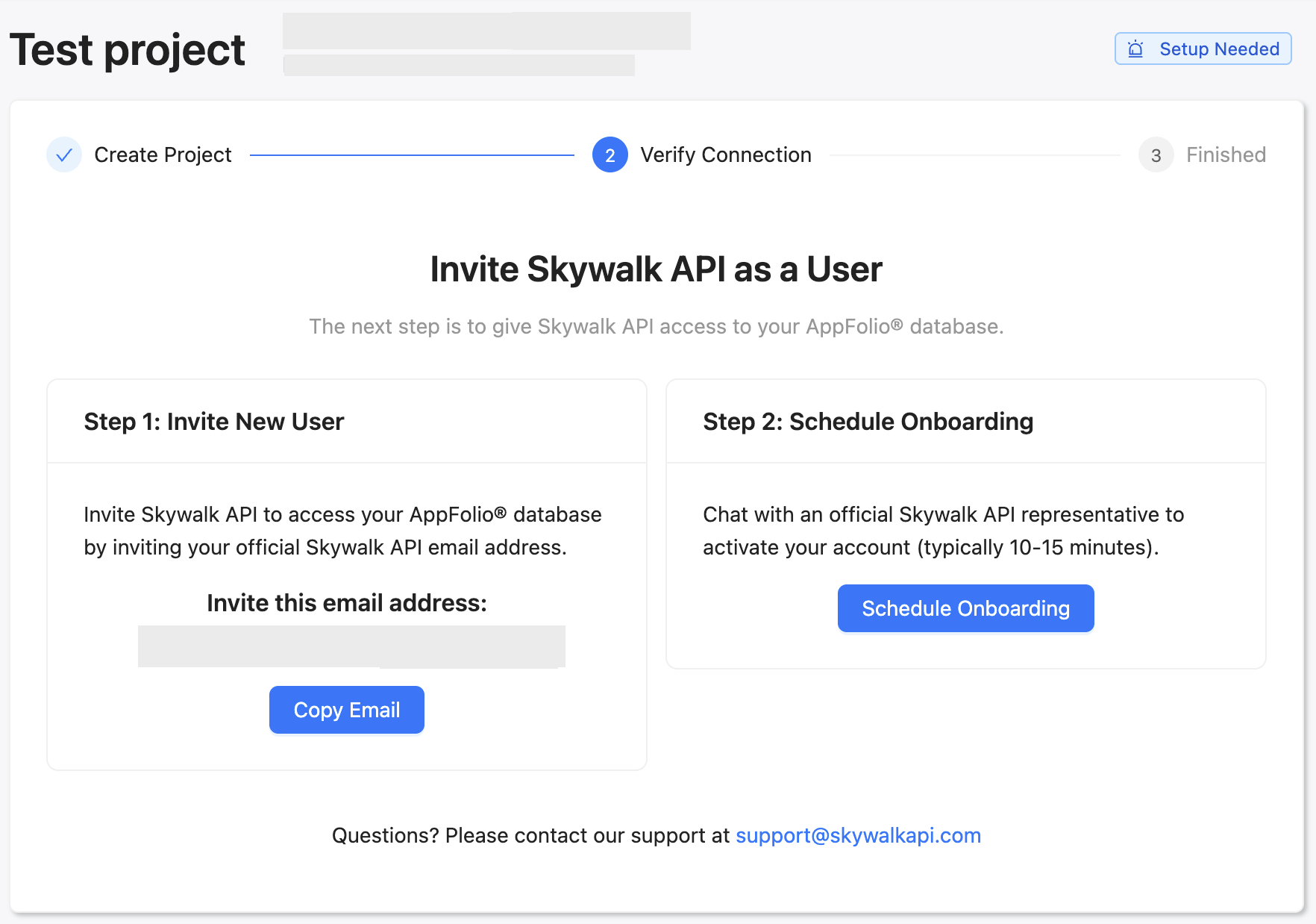
3. Connect to AppFolio®
Use your project's dedicated email address to invite a new user into your AppFolio® database. In AppFolio®:
- Go to Settings > User Management
- Click Add User
- Enter the dedicated email address from your Skywalk API project
- Assign the appropriate permissions (see below)
- Send the invitation
This approach has two important security advantages:
- No shared credentials — Skywalk API never needs to know your administrative AppFolio® login
- Granular permissions — you control exactly what data Skywalk API can access through this user's AppFolio® permissions
Recommended Permissions
The permissions you grant determine which Skywalk API endpoints will work for your project. At minimum, the dedicated user needs read access to the data types you plan to use. For example:
- Property Directory Report, Property Group Directory Report, Unit Directory Report — for core property management data
- Tenant Directory Report, Leases History Report - for tenant and lease lists
- Financial Reports — for cash flow, balance sheets, rent rolls, and GL accounts
- Maintenance — for work orders and vendor data
- Leasing — for guest cards, applications, and vacancy data
If you plan to use write endpoints (like creating tenant charges), the user will also need the appropriate write permissions in AppFolio®.
Do not change or reset the dedicated user's password in AppFolio®. If the password is changed, Skywalk API will lose access to your data until the credentials are updated.
4. Verify Your Connection
Once you add the user to your Appfolio account and schedule an onboarding call, we will make sure you are all set and activate your account.