Connect Claude to AppFolio® Data
This guide walks you through connecting Claude.ai to your AppFolio® portfolio using the Skywalk MCP server. Once connected, Skywalk shows up as a built-in tool in every Claude conversation on your account — you can ask questions about your properties, tenants, and financials in plain English.
Note: AI agents must be turned on for your Skywalk API project. Talk to support to learn more.
What you can build
Once Claude is connected to Skywalk, a single prompt can pull live data from across your portfolio and turn it into an interactive, branded analytics view — no spreadsheets, no SQL, no BI tool.
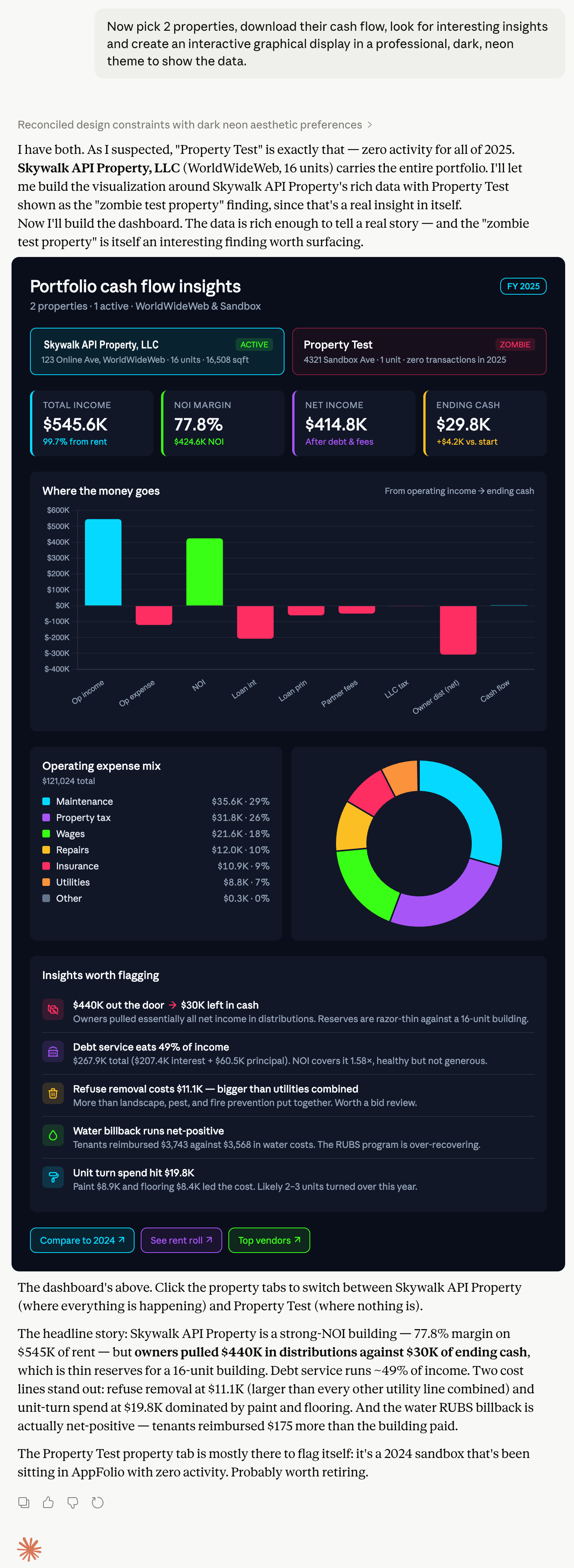
That dashboard was generated from a single chat message. Claude called the Skywalk cash-flow tool, reconciled the numbers across both properties, and rendered the entire view itself — including the callouts that flagged a debt-service-coverage warning and an under-recovered utility expense.
Before you start
You'll need:
- A Claude.ai account with access to Connectors (available on paid plans).
- Either the admin role on your Skywalk API project, or an invitation code from a project admin. Admins create codes on the project's AI Agents page with Add Agent → Invite someone with a code.
- AI agents turned on for your project — talk to our team to enable them.
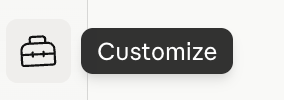
1. Open Claude's Customize menu
In Claude.ai, click the Customize button (toolbox icon) in the sidebar.
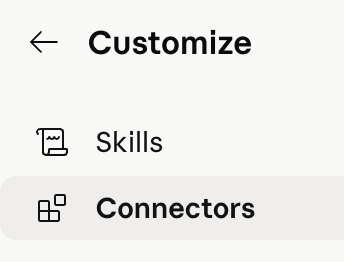
2. Open Connectors
In the Customize panel, select Connectors.
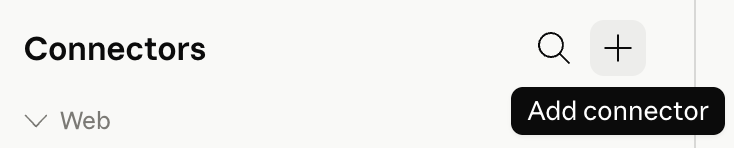
3. Click Add connector
Next to the Connectors heading, click the + button (Add connector).
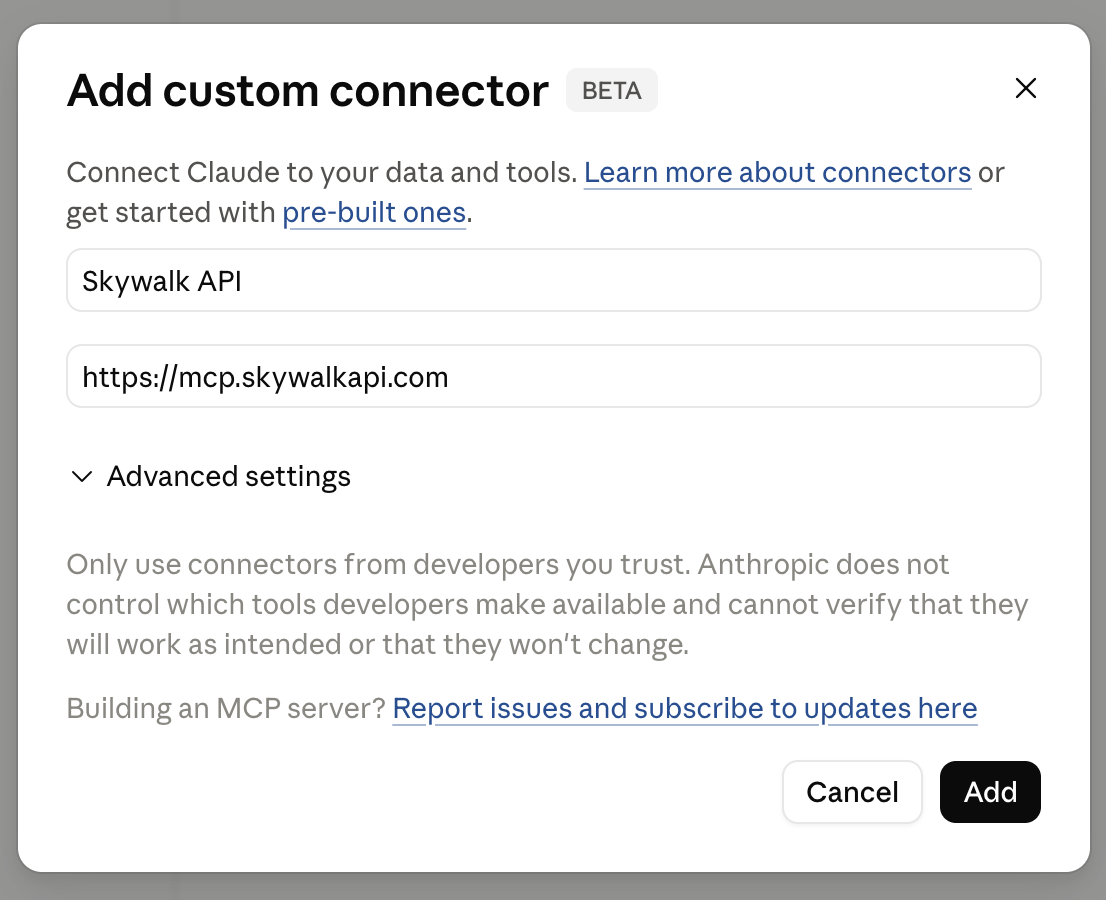
4. Add the Skywalk MCP server
In the Add custom connector dialog, enter:
- Name:
Skywalk for AppFolio - URL:
https://mcp.skywalkapi.com
Then click Add.
5. Connect
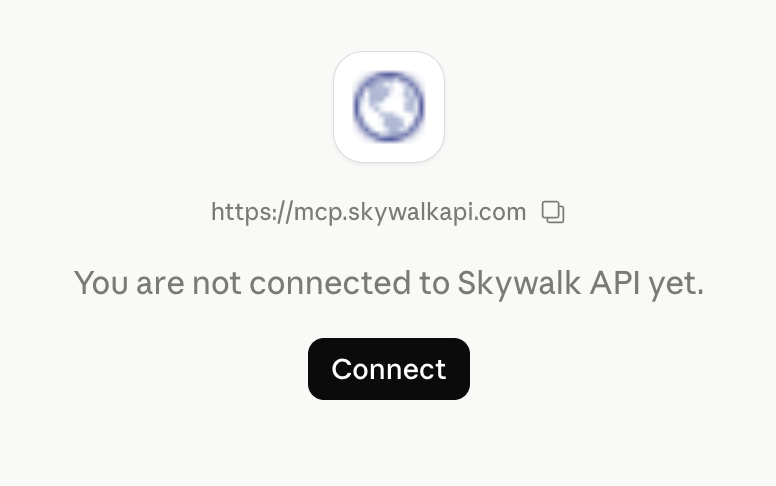
Claude will show the connector with a Connect button. Click Connect to start authentication.
6. Authorize Claude
A Skywalk API page opens and names the agent you are connecting.
- Signed in as a project admin: choose the project, its AppFolio® connection and the data Claude may use, then click Authorize Claude.
- With an invitation code: enter the code a project admin sent you and click Authorize. Claude gets the connection and permissions the admin chose when creating the code.
Each invitation code connects one agent, works once, and expires three days after it is created. The authorization page expires 15 minutes after it opens; if it does, click Connect in Claude again.
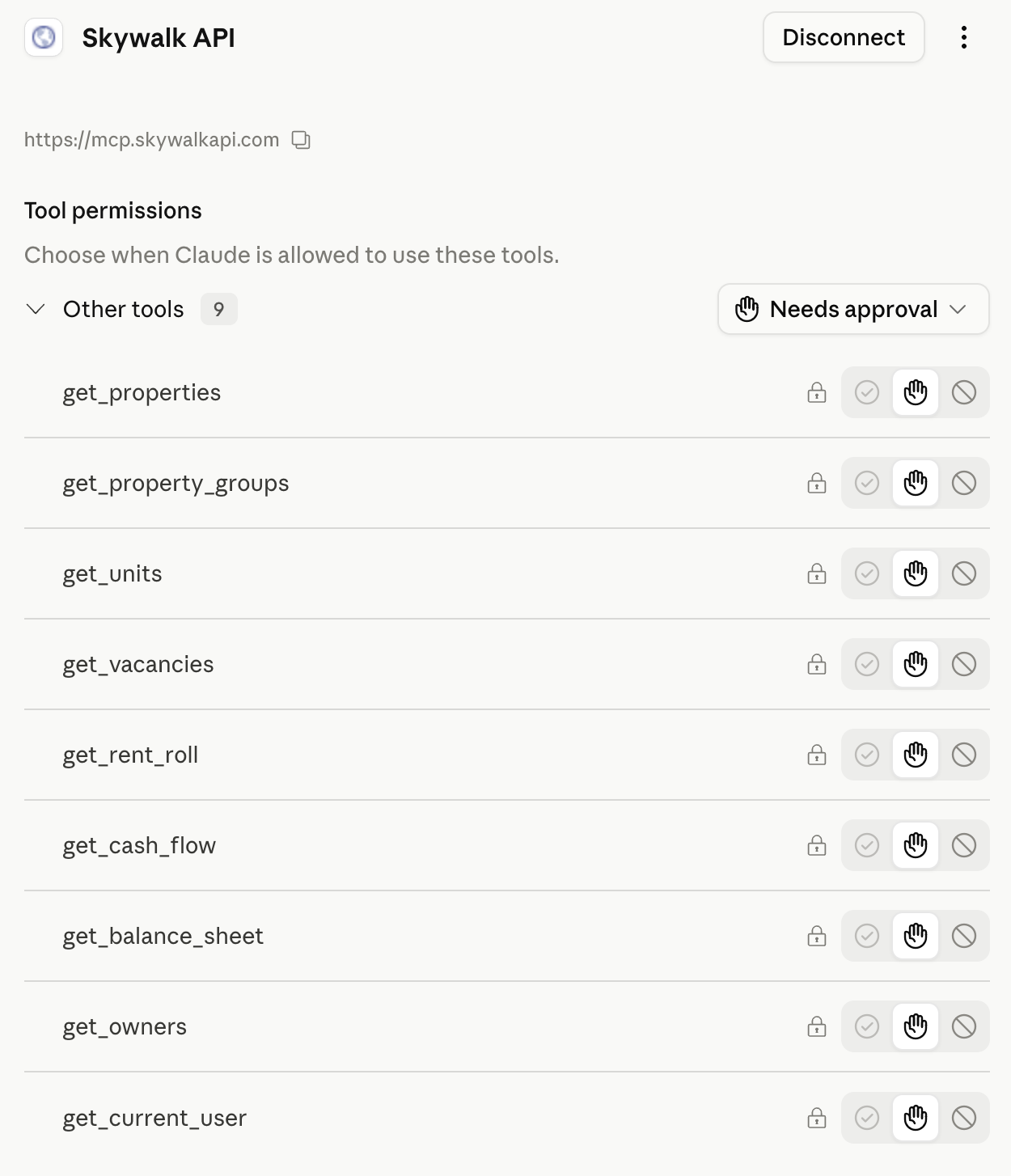
7. Confirm the tools loaded
Once connected, Claude lists the available Skywalk tools and lets you control when each one is allowed to run. The defaults are sensible — you can leave them alone and adjust later if you want fewer approval prompts.
8. Ask Claude a question
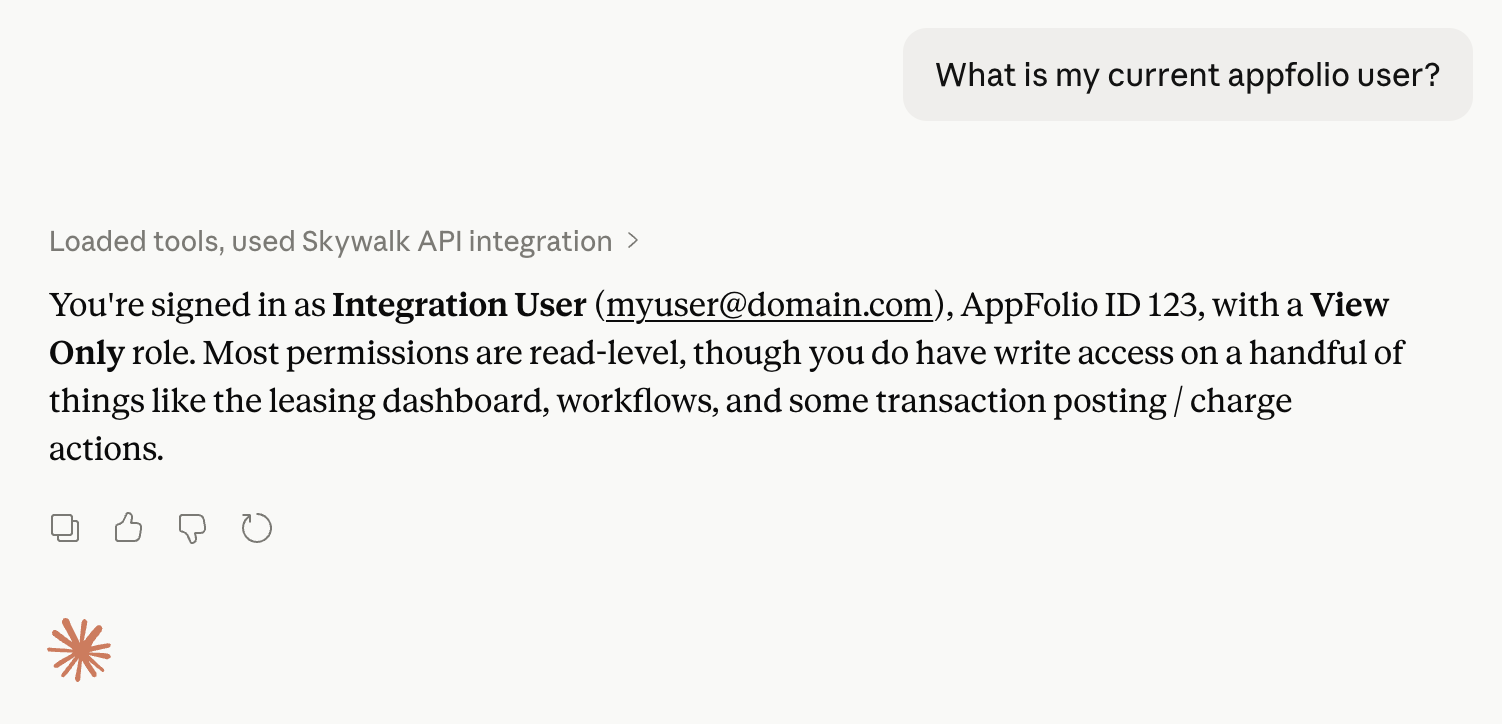
Start a new Claude conversation and ask anything about your portfolio. Claude will pick the right tool automatically — you don't need to reference the tool names.
See Example prompts below for more ideas, and the MCP Server guide for the full tool catalog.
Troubleshooting
- "You are not connected" stays after clicking Connect. Re-open the connector from the Connectors list and click Connect again. If a browser pop-up was blocked, allow pop-ups for claude.ai.
- Your invitation code is not accepted. Codes work once and expire three days after they are created. Ask a project admin for a new one.
- Claude asks you to connect again. Removing the connector, switching workspaces or leaving it unused for a long time ends the connection. Authorize again with a new invitation code, or as a project admin.
- Claude's requests are refused. A project admin may have revoked the agent or changed its permissions on the AI Agents page.
- Tools don't appear in a new conversation. Reload Claude.ai — connectors only attach to conversations started after they were added.
What to expect
- Ask naturally. You don't need to know tool names — Claude picks the right one based on your question.
- Live status while it works. Long-running questions stream progress updates so you can see what Claude is doing.
- No partial answers. Tools return the full result set, paging through every result rather than stopping at the first page.
- Up-to-date data. If a report needs to refresh from AppFolio®, the server waits for the fresh data before answering — you don't need to retry.
- Counts toward your API usage. A single question can fan out into several API calls — one per tool Claude decides to use, plus an extra call for each additional page of results. Large portfolios can therefore consume meaningfully more of your project's usage than a single REST request would. Usage is recorded against the agent, not against an API key.
- Read-only. All tools are read-only; the MCP server cannot modify anything in AppFolio®.
Example prompts
Once connected, try asking Claude things like:
- "List every vacant unit with property, days vacant, and unit details — then build me an interactive dashboard I can sort and filter."
- "Pull year-to-date cash flow across all properties and generate a professional one-page PDF executive report with charts and key takeaways."
- "Show me which units in my rent roll have an outstanding balance, group them by property, and visualize the totals as a chart."
- "Render my current balance sheet as a stacked bar chart broken down by property, with assets, liabilities, and equity color-coded."
- "Audit every unit that's been vacant for more than 30 days and produce a printable owner update grouped by property."